Official support for Mutual Transfer Alliance and Huawei Share. Send files both ways between your Mac and compatible phones or tablets, with no extra phone app or account.
02Separate progress, cancellation and retry for each recipient.
03Enroll Huawei devices from receive history too.
04Set receive scope, hidden devices and automatic updates.
1 / 4
01 / THE DETAILS
Small details. Real difference.
01
The headline in 1.2.0: Huawei Share.
Tested in both directions on Huawei Pura 70 with HarmonyOS 7. Use the phone’s built-in Huawei Share on the same Wi-Fi; Petal does not need to be running.
02
Click to send. Then send to another.
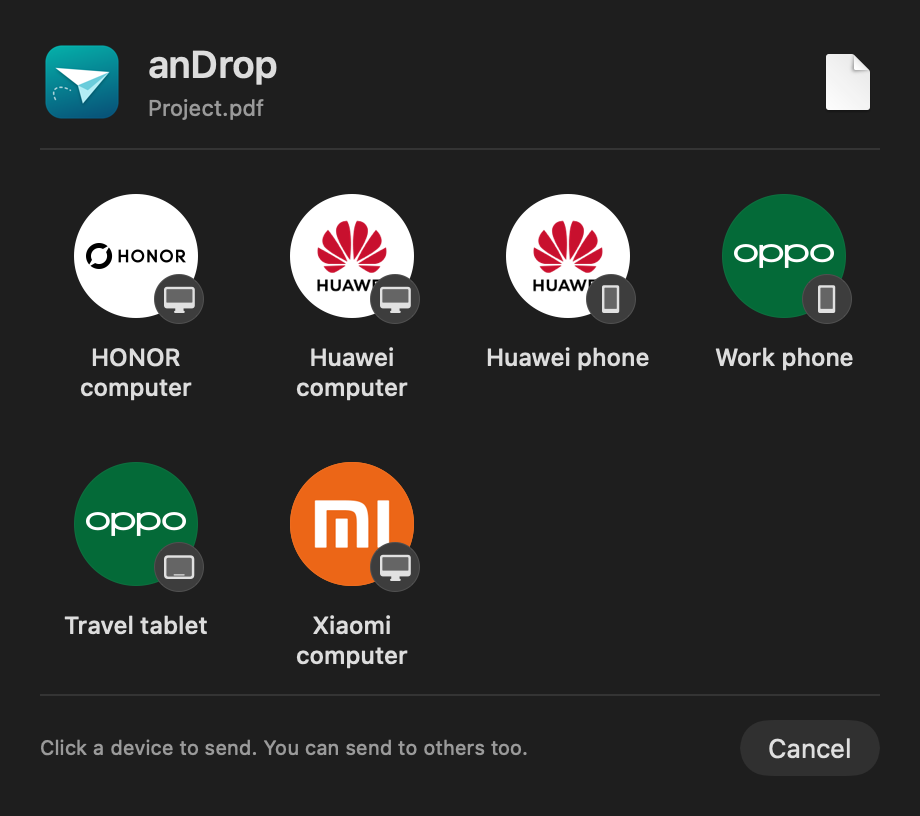
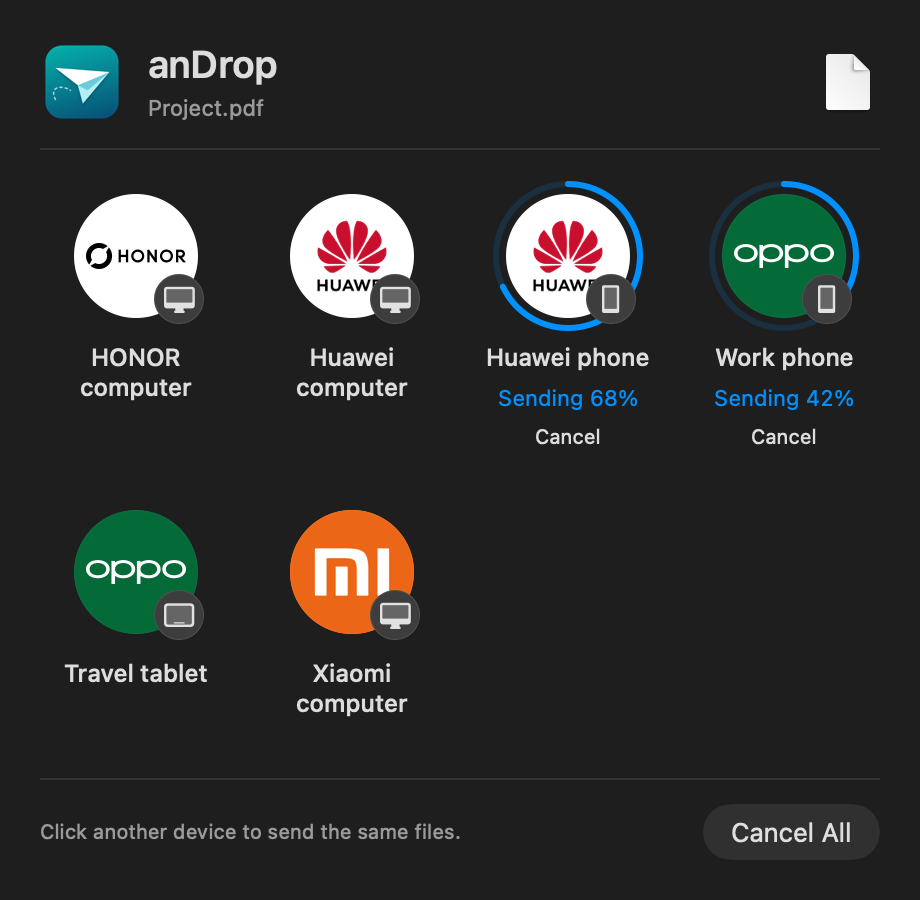
Choose Share → anDrop in Finder and click a device to start. Click another device while sending to share the same files there too. Each recipient has its own progress, cancellation and retry.
03
Receive directly into Downloads.
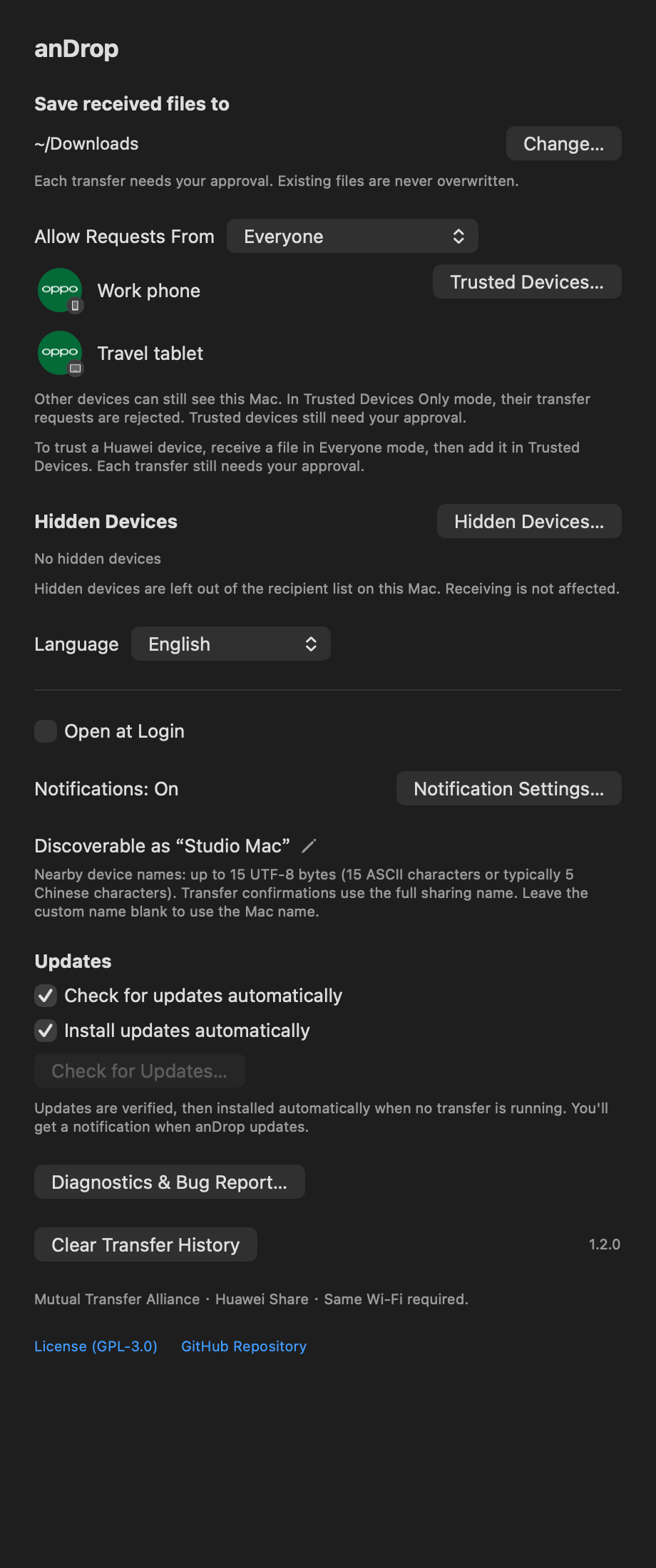
Choose your Mac in the phone’s compatible sharing feature, then approve in a notification or the menu bar. Files go to Downloads by default. Duplicate names get a numeric suffix, and received files are not opened automatically.
04
Approve every incoming transfer.
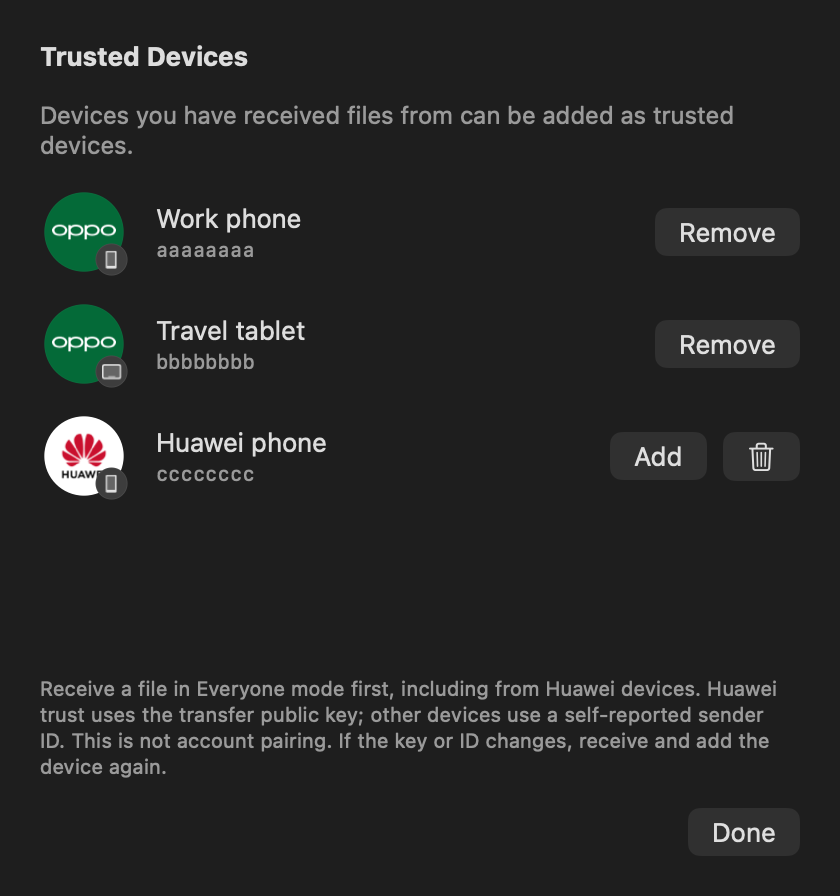
Choose Everyone or Trusted Devices Only. Enroll Huawei devices from successful incoming transfers, using their transfer public key. Every receipt still needs approval; this is local trust, not account pairing.
05
Rename devices. Keep your list tidy.
Right-click a device icon to rename it on this Mac or hide it from candidates. Restore hidden devices in Settings. Hiding a recipient does not change receive permissions.
06
Updates wait for your transfers.
With automatic updates enabled, verified updates install and relaunch after transfers finish, with notifications. Turn automatic installation off to receive a new-version notification instead.
02 / BEFORE YOU START
Good to know.
Open the DMG, move anDrop to Applications and launch it. Allow Bluetooth, Local Network, notifications and folder access as needed. Requires Apple Silicon and macOS 14 or later; no Intel installer is available. Physical testing on macOS 14 remains outstanding.
Bidirectional physical tests cover OPPO Find X9 Pro, OPPO Pad 4 Pro and Huawei Pura 70 with HarmonyOS 7. Other brands and models remain untested; compatibility varies by region, OS and model.
anDrop handles Huawei Share file sharing on its own. Finish transfers in Petal Interconnect, quit it, then use anDrop. Coexistence remains experimental; a failed send or receive while Petal runs shows a recommendation to quit it and retry.
Mac → Huawei: up to 16 files, 4 GiB each and 16 GiB total. Huawei → Mac: up to 16 files, 16 MiB per file and total. GiB-scale physical transfers and simultaneous delivery to physical Huawei and OPPO devices remain unverified. Google Quick Share and Wi-Fi Direct are not supported.
Enable compatible sharing and Everyone visibility on the other device. Visibility may expire automatically. Guest Wi-Fi and networks that isolate devices may block transfers.
The app supports Simplified Chinese and English. Compress folders first and send identical filenames separately. Sends to different devices can run concurrently; receiving remains exclusive.
Screens show the real app UI with fictional data. They do not establish compatibility with every brand or PC shown.
Open source under GPL-3.0-only. anDrop is not an official Apple or device-manufacturer product.